Desktop Client
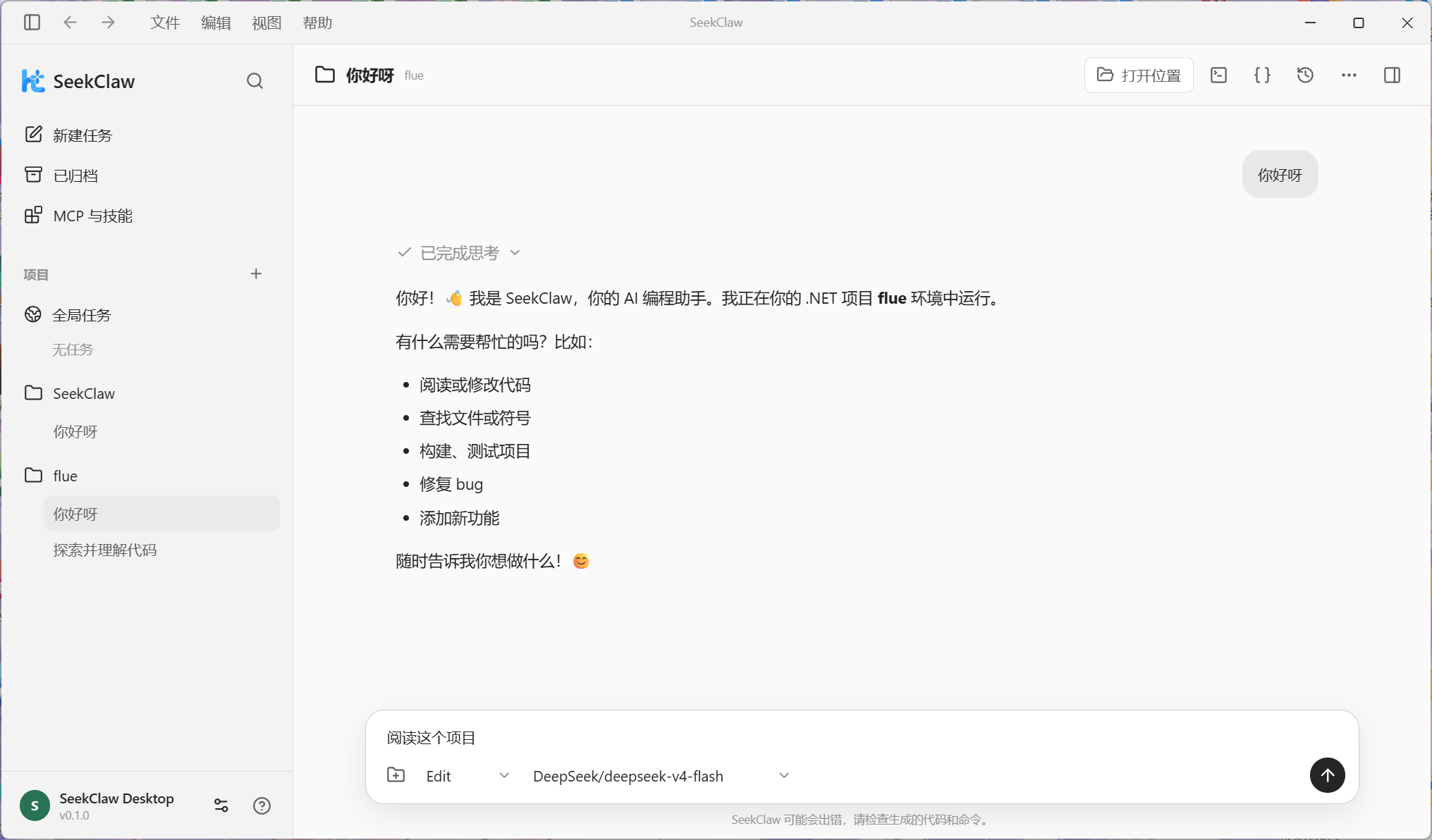
SeekClaw Desktop is an Electron and Vue client for the same .NET Runtime used by the CLI. It connects through the local Daemon IPC protocol and provides a graphical workspace for projects, tasks, models, tools, and runtime health. Desktop and CLI share Provider, Profile, MCP, Skill, and session data.
Install and launch
Use a packaged release
<LatestRelease />
The current Desktop release target is Windows x64. Keep the complete SeekClaw-win-x64 directory and run SeekClaw.exe; copying the EXE by itself is not supported.
The package contains a self-contained Runtime:
SeekClaw-win-x64/
├── SeekClaw.exe
└── resources/
    └── runtime/
        └── seekclaw.exe
End users do not need to install .NET. On launch, Desktop first tries to connect to an existing Daemon and starts the bundled Runtime when none is available. On exit it stops only the Runtime instance it started, leaving independently started Daemons alone.
Build a release from source
Building requires Windows x64, the .NET 10 SDK, Node.js, pnpm, and Python 3. After cloning the repository, double-click build.cmd in the repository root:
build.cmd
The command wrapper launches the cross-platform build.py entry point. It installs dependencies, runs .NET and Desktop tests, publishes the self-contained Runtime, builds Electron, and assembles the final folder at:
publish\SeekClaw-win-x64\SeekClaw.exe
Optional terminal flags include:
build.cmd --skip-tests
build.cmd --skip-install
Distribute the whole publish\SeekClaw-win-x64 folder. Packaging downloads Electron binaries; the script configures download mirrors and retries transient packaging failures.
Project and global tasks
Desktop supports two task scopes:
- A project task is bound to a local directory and can use file, terminal, Git changes, and Git history features.
- A global task has no project directory and is intended for general conversation; local file, terminal, and Git tools are unavailable.
Creating a task does not immediately create a Runtime Session. Desktop creates and persists the session when the first message is sent. The “Global tasks” entry expands the global task list instead of forcing a switch to a particular task.
Titles are derived from the first prompt. Tasks can be archived, restored, or deleted, including bulk operations within a project or the global scope. Archived tasks are read-only. Deleting a project permanently deletes every Session under that project, including archived Sessions, but does not delete local project files.
Start a conversation
- Select “New task,” then choose a project or use the directory-free global scope.
- Select an Agent mode and
provider/modelin the composer. - Enter a request and send it, or click a starter-prompt card. A card fills the composer but does not send automatically.
- Follow streaming text, reasoning status, tool activity, and complete error details.
Vision-capable models expose an image button in the composer for selecting multiple PNG, JPEG, WebP, or GIF files. After taking a Windows screenshot, press Ctrl+V in the composer to attach the clipboard image directly. Images can be previewed or removed before sending and are persisted with the Session. As each image enters the model request, the assistant message shows a “Viewed” row with its file name and thumbnail; click it to preview the image again. The button is disabled when the selected model does not declare the vision capability.
You can keep typing while the Agent is streaming. Pressing “Send” adds the message to a queue; queued messages are sent in order after the current turn finishes, and can be stacked or removed. Pressing “Steer” sends a queued message as additional guidance to the active turn without cancelling its in-flight request.
Project tasks show the complete workspace path and shortcuts for opening the directory, terminal, Git changes, Git history, and task settings. Global tasks omit the path and project-only tools.
Models, Providers, and API keys
Open “Settings → Models & Providers” to:
- create, edit, test, enable, or remove Providers;
- view and edit API keys stored explicitly in the configuration;
- store and manage the API key directly in the configuration;
- manage models, Base URL, proxy, timeout, and priority;
- create Profiles and switch the active model or routing strategy.
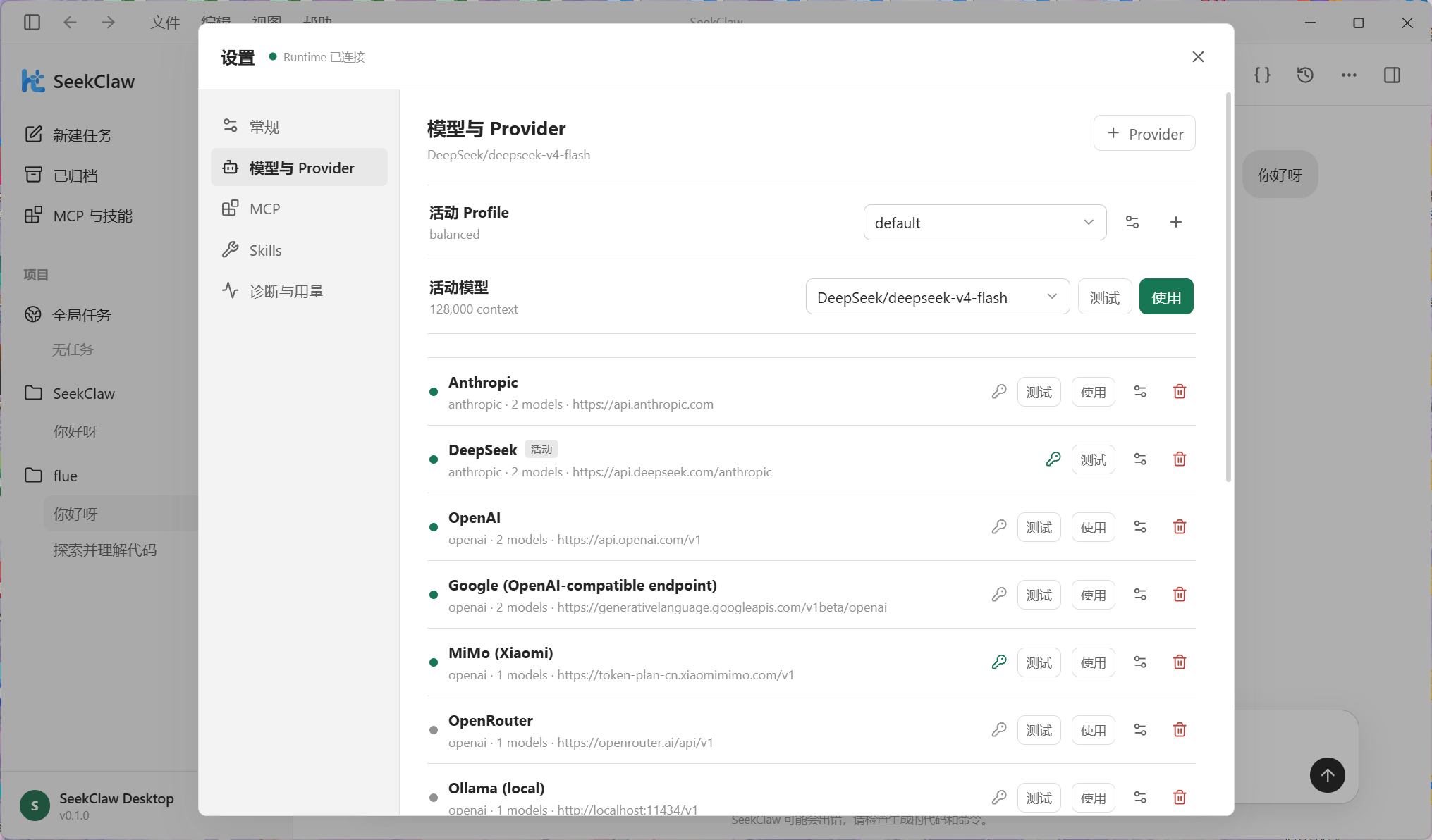
The apiKey value is stored directly in ~/.seekclaw/config.json and is read, displayed, and edited by Desktop. Runtime does not read API keys from environment variables.
Use “Test” immediately after saving. Failed model requests include the Provider, HTTP status, and complete server response instead of only a generic LLM request failed message.
MCP, Skills, diagnostics, and usage
The settings workbench also provides:
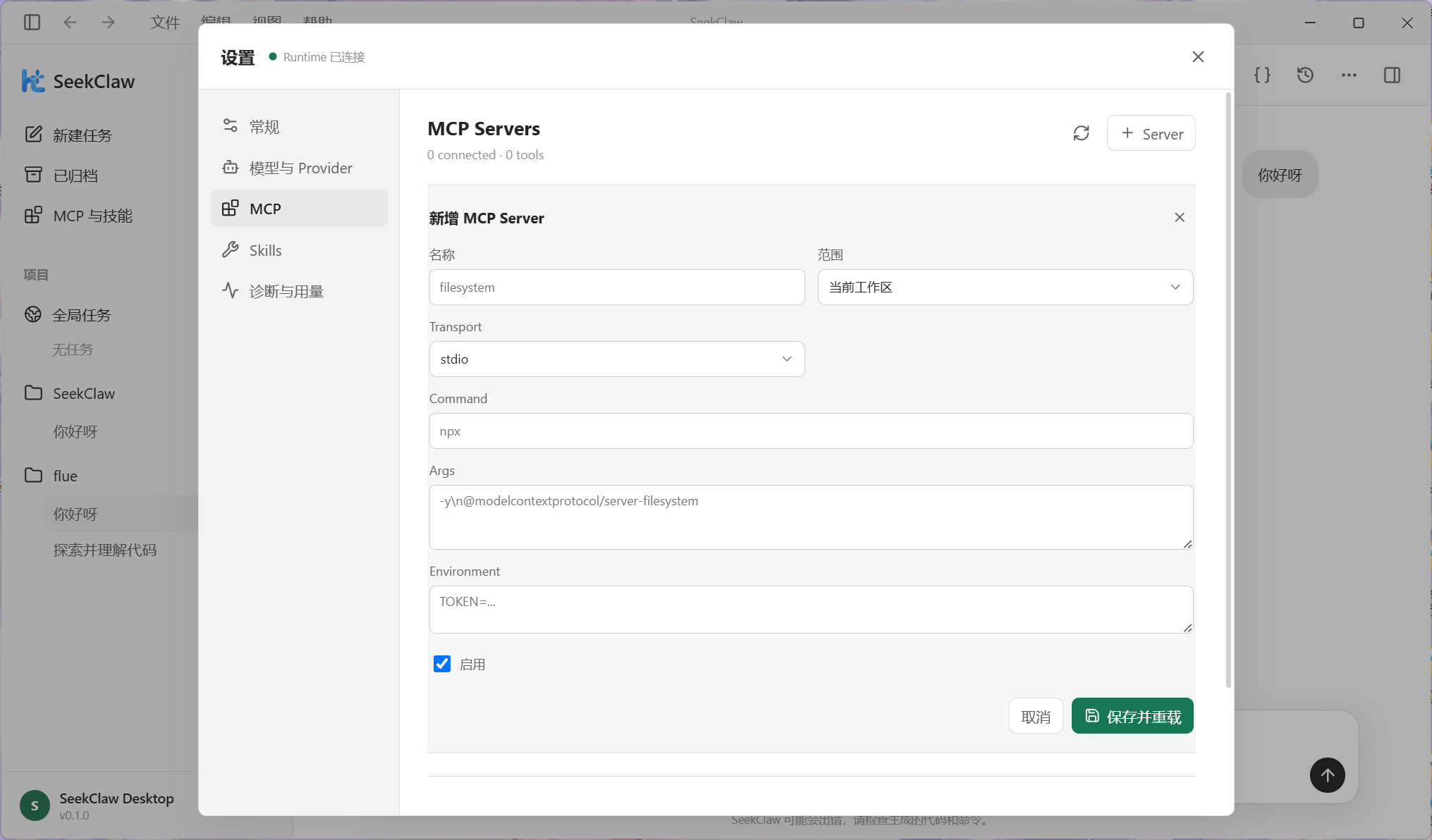
- MCP: configure workspace or global stdio / SSE servers and reload their tools after saving;
- Skills: inspect discovered skills and enable or disable them;
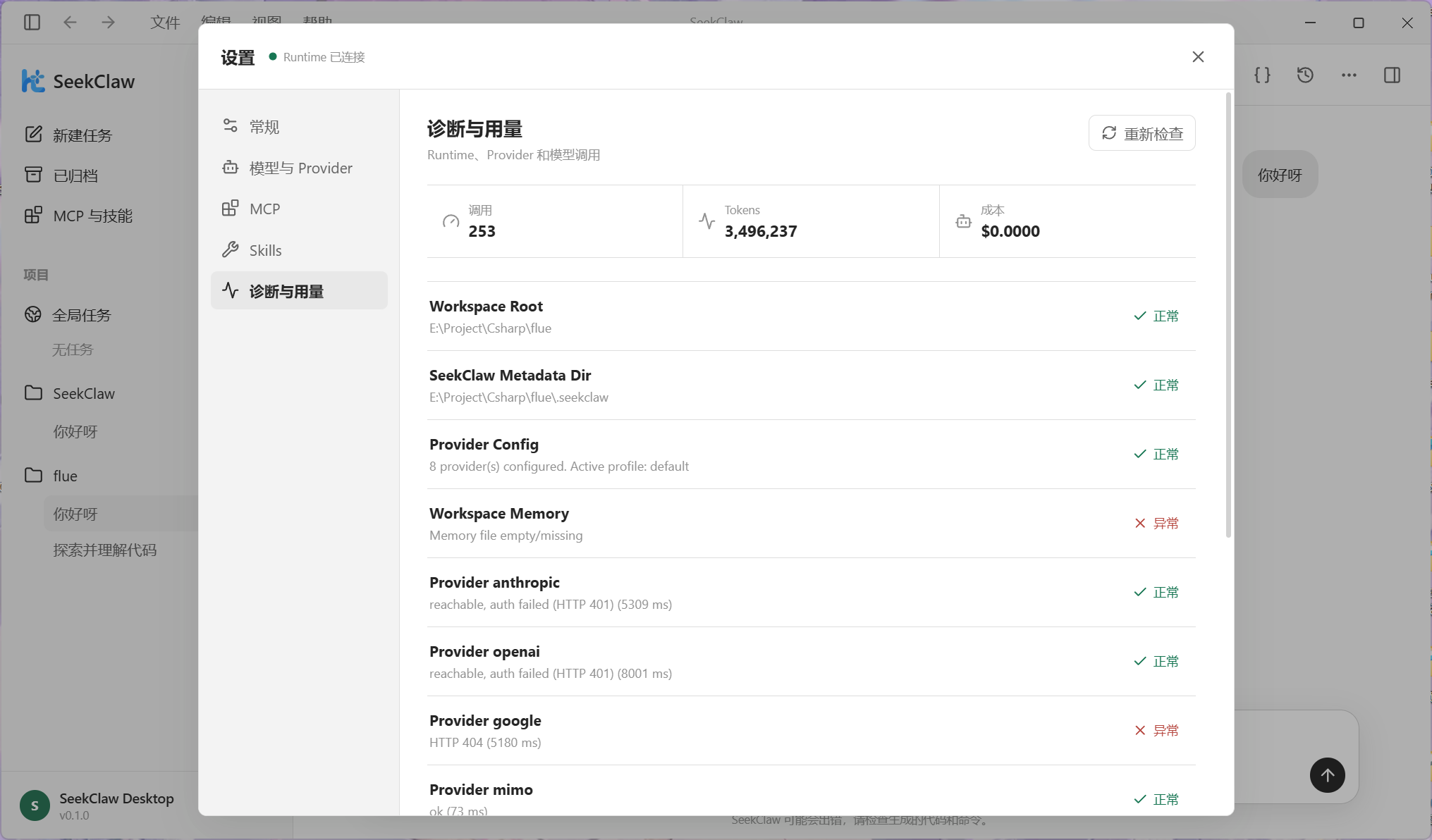
- Diagnostics & Usage: inspect workspace, configuration, and Provider health plus calls, tokens, latency, and cost.
Runtime connection behavior
Desktop connects automatically on startup and performs a bounded reconnect sequence when the connection is lost. If reconnection still fails, it displays the concrete error and offers another retry or exit.
Check the following first:
- Verify that
resources\runtime\seekclaw.exeexists in the release folder. - Check that an incompatible or stale Daemon is not occupying
\\.\pipe\seekclaw. - Run the checks again from “Diagnostics & Usage.”
- For a source checkout, run
build.cmdto stage the Runtime required by Desktop.
See Daemon and IPC Protocol for the lower-level integration contract and FAQ & Diagnostics for more troubleshooting help.